Other Parts of This Series:
- Part 10: DevOps - Step By Step Learning : Part 10 (Linux Networking, Compression and Little Scripting for Automation)
- Part 12: DevOps - Step By Step Learning : Part 12 (Dissection Important Part of Vagrantfile)
DevOps Vitualization (Photo Credit: Unsplash)
Story:
Rasel was a professional .NET (C#) developer thus an avid user of the Windows ecosystem, as we already know. He therefore dual boots his computer with Linux and Windows in order to work, study and practice Linux. However, He discovered that it was challenging and troublesome to practice and work by jumping between OSs. Furthermore, it is not a sensible method of server management. He thus explored and discovered the virtualization process. It provides appropriate isolation and helps in running different operating systems on a single machine. He then made an effort to understand how to manage virtualization in a better, simpler, and more effective manner.
Prerequisites:
- Install VirtualBox (or other providers)
- Install Vagrant
What is Virtualization?
Virtualization is the technology that lets you run multiple operating systems (like Linux, Windows) on a single physical machine by using virtual machines.
- Think of it like running different computers inside your main computer.
- It’s powered by a software called hypervisor, which manages and runs these virtual machines.
How Does It Work?
- A hypervisor is special software that controls virtualization. It sits between your hardware and your virtual machines. The hypervisor’s job is to divide and manage system resources like CPU, RAM, disk, and network among the VMs.
- A VM is a virtual computer that runs inside your real computer. Each VM has its own virtual CPU, RAM, disk, and network adapter. The hypervisor assigns a portion of your actual hardware to each VM.
- Each VM can run a different OS from your host (e.g., Linux VM on Windows host). You can run multiple VMs at once, each isolated and independent. The hypervisor keeps things fair: It makes sure VMs don’t interfere with each other, It handles scheduling of CPU and memory allocation.
- Each VM is isolated from the others and has its own IP. If one VM crashes or gets infected, the others are not affected. This is great for testing software safely.
Types of Hypervisors:
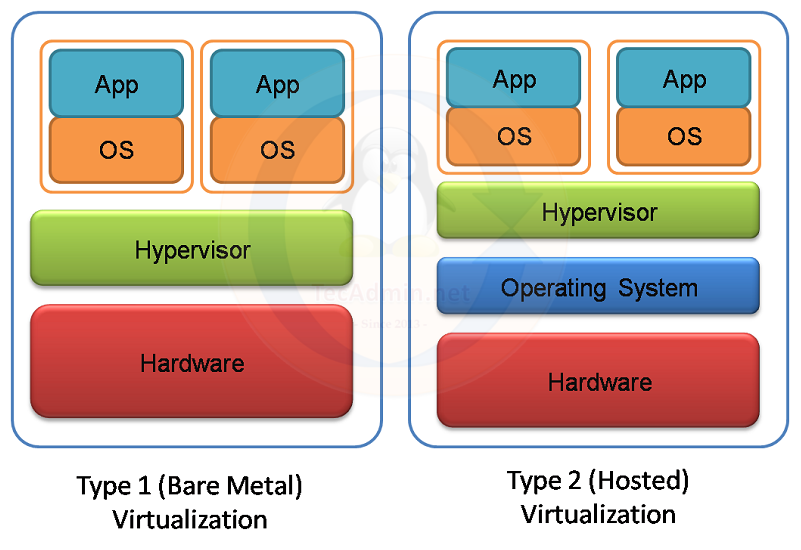
- Type 1 (bare-metal): Runs directly on hardware (e.g., VMware ESXi, Microsoft Hyper-V).
- Type 2 (hosted): Runs on top of an OS (e.g., VirtualBox, VMware Workstation).
VM Type (Photo Credit: Tecadmin)
What is a Virtual Machine (VM)?
A VM is a software-based computer with its own CPU, memory, storage, and OS.
- You can install Ubuntu on a VM while using Windows on your real machine.
- Each VM is isolated, so it’s safe to test deployments or run services.
Example Use Cases:
- Testing different OS environments.
- Running server stacks (web server + DB) without affecting your main system.
- Simulating production environments for DevOps pipelines.
VM Structure (Photo Credit: SUSE)
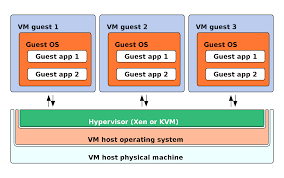
So, in a single word, virtualization is a technique that allows run multiple operations systems known as guest operating system in a single machine on top of main operating system known as host operating system. And hypervisor manage, allows and conducts those communication between host and guest OS.
Virtual Machine Manually
Manual VMs Management basically can done in 4 steps after installing the hypervisor software like Oracle VM VirtualBox:
- Create a virtual machine with hostname, cpu, ram, hard disk etc necessary settings.
- Download and install a guest operating system like Linux ubuntu or centos.
- Tuning the network settings like bridge network and any others settings.
- Start, SSH / Use, Save State and Stop as per necessary.
For more info:
- https://docs.oracle.com/cd/E26217_01/E26796/html/qs-create-vm.html
- https://www.youtube.com/watch?v=VskAnHHr3xc
- https://www.youtube.com/watch?v=nvdnQX9UkMY
Automating VMs with Vagrant
Vagrant is a tool to automate the creation and configuration of virtual machines.
- It works with VirtualBox, VMware, Hyper-V, etc.
- It uses a Vagrantfile to define how the VM should be built.
Basic Vagrant Workflow
Step 1: Initialize a New Project
Step 2: Customize the Vagrantfile
Step 3: Start the VM
Step 4: Access the VM
| |
Step 5: Stop or Destroy
Why Use Vagrant?
- Automates repeatable environments (great for DevOps/testing).
- Version control your environments via Vagrantfile.
- Works on any OS, your team can all use the same setup.
Summary:
Virtualization lets you run multiple virtual computers on one real computer with the help of a software called Hypervisor. These virtual machines (VMs) are useful for testing and development without breaking your main system. Vagrant makes it easy to create and manage VMs using code, so you can build the same environment every time, helpful for DevOps automation, testing, and consistency across teams.