Other Parts of This Series:
DevOps Docker Containerization (Photo Credit: Unsplash)
Story:
Understanding what containerization is, why it is necessary, and how it works is critical before delving into Docker or any other container tools (like: podman, containerd etc.). Rasel wanted to go hands-on with Docker after understanding these concepts. So, as planned, Rasel begins with the Docker architecture and basic commands that needs for his day-to-day development. And gradually move to the advanced concepts of Docker.
Docker Architecture
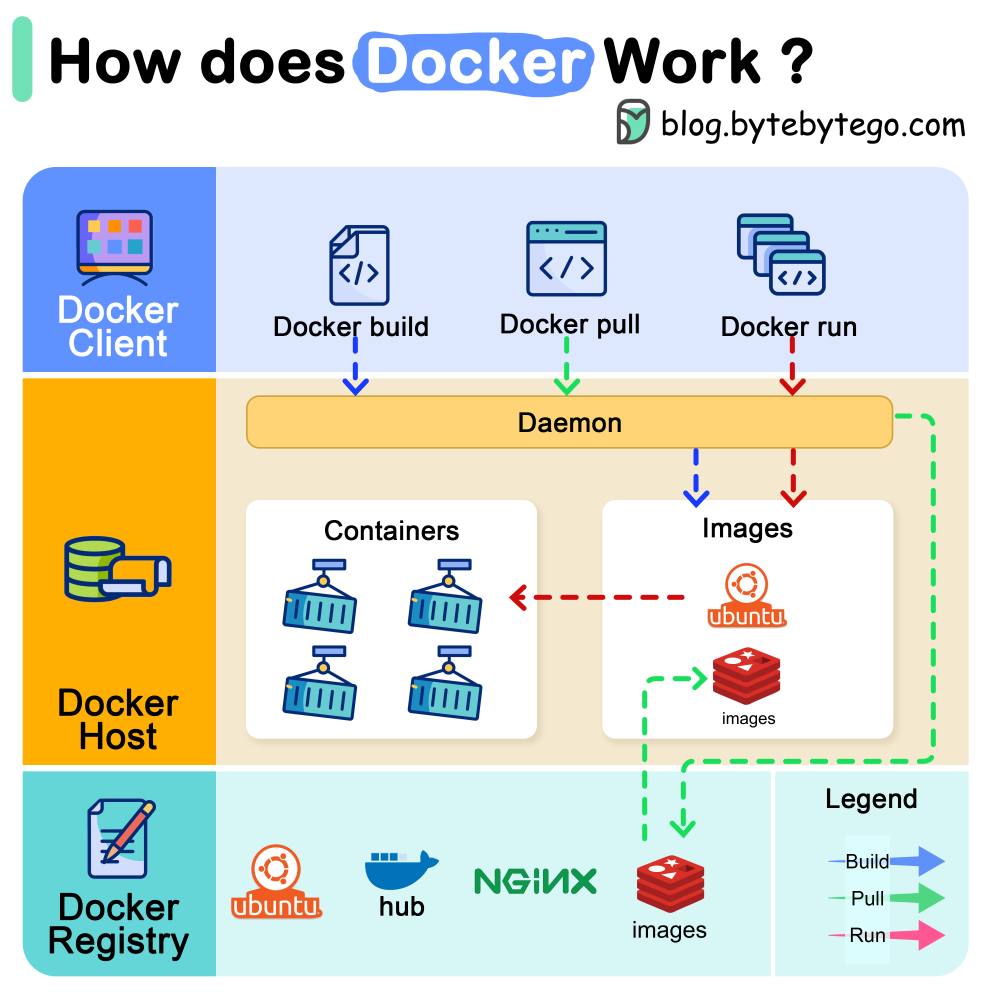
Docker Working Mechanism (Photo Credit: ByteByteGo)
Docker has a client-server architecture, means a client (mainly the cli) request to server (here docker engine or deamon) and the request further pass to the other end (docker registry) if needed.
It composed with the following parts:
Docker Engine or Daemon (dockerd)
- This is the core service that runs on the host machine and manages Docker objects like images, containers, networks, and volumes. It also handles the building, running, and distributing of containers.
Docker Client (docker)
- This is the interface users interact with to control Docker. It sends commands to the Docker daemon, which then executes them.
REST API (docker pull, docker run etc.)
- Under-the-hood interface between CLI and daemon. Enables programmatic interaction with Docker.
Docker Images (from Dockerfile)
- These are read-only templates used to create Docker containers. They contain the application code, libraries, dependencies, and runtime environment needed for an application to run.
Docker Containers
- These are runnable instances of Docker images. They provide an isolated environment for applications, ensuring they run consistently across different environments.
Docker Registries
- These are services that store and distribute Docker images. Docker Hub is a public registry, but users can also set up private registries.
Docker Networks
- These are virtual networks that allow containers to communicate with each other and with the host machine.
Docker Volumes
- These provide persistent storage for containers, allowing data to be saved and shared between containers and the host machine.
Other advanced features Like:
Docker Compose
- This tool is used to define and run multi-container Docker applications using a YAML file to specify services, networks, and volumes.
Docker Swarm
- This is an optional orchestration service that allows for managing and scaling Docker containers across multiple hosts.
How it works?
- The Docker client sends commands to the Docker daemon (usually via a REST API).
- The Docker daemon manages the requested operations, such as building images, creating containers, or managing networks.
- When creating a container, the Docker daemon first checks if the necessary image is available locally. If not, it downloads the image from a docker registry.
- The daemon then creates an isolated container environment based on the image and starts the application within that container. Isolated means separate filesystem, PID space, volumes, networks etc.
Dockerfile (Blueprint for Images thus container)
A Dockerfile is a text file containing a set of instructions that Docker uses to automatically build a container image. It defines how container should build and run consistently throughout any platform or machine.
Let’s see a simple Dockerfile and understand what each section means.
| |
Dockerfile Instructions:
- FROM: Specifies the base image to use for building the new image.
- WORKDIR: Sets working directory inside the container.
- ENV: Sets environment variables within the container.
- COPY: Copies files from the host machine into the container image.
- RUN: Executes commands during the image build process, like installing software or creating directories.
- EXPOSE: Documents which ports the container listens on.
- CMD: Defines the default command to execute when a container is started from the image.
- ENTRYPOINT: Defines the primary command that will always execute when a container is launched from the image. It ensures that a specific executable or script is the starting point of the container’s process.
Tips: Use .dockerignore file to exclude files like node_modules, .git, etc., from being copied into the image.
Dockerfile Best Practices & Real-World Tricks
- Use small based images for faster build. Prefer alpine or slim versions of base images.
- Run docker container with memory and cpu limit to prevent resource overuse.
- Use multi-stage builds. Removes compilers, source files, and tools from the final image which not need actually in production.
- Always use .dockerignore file for preventing unnecessary files copy and increase performace + security.
- Combine RUN instruction with && to reduce layers.
- Use COPY instead of ADD always. Use ADD if you need it really.
- Always specify the version of images to avoid unnecessary issues.
- Use WORKDIR instead of cd command.
- Always run containers as non-root user. Using ROOT user is dangerous.
- Use ENTRYPOINT if you need your container need behave like standalone script. Combine with CMD for default arguments.
- Cache optimize your dockerfile, copy smartly and clean unnecessary files after build app.
- Use HEALTHCHECK if possible. Like: “HEALTHCHECK –interval=30s –timeout=10s CMD curl -f http://localhost:3000/health || exit 1”.
- LABEL your images with version, maintainer, descriptions etc.
- Use official images always if possible.
- Use –read-only filesystems.
- Limit Capabilities with –cap-drop ALL. It avoid privilege escalations.
- Use ‘docker scan’ command for catch vulnerabilities in dockerfile.
For more details: https://docs.docker.com/build/building/best-practices/
Docker Volume
Purpose: Volumes are designed to persist data generated by and used by Docker containers, allowing data to be shared between containers and the host machine.
How they work?: When a volume is mounted into a container, it’s a directory on the host machine that the container can access and modify. Means it sets a watch mode so that any change can immediately reflect.
Benefits:
- Data Persistence: Data stored in a volume survives container restarts, deletions, or recreation.
- Sharing Data: Volumes can be shared among multiple containers, enabling communication and data exchange.
- Backup and Restore: Volumes can be backed up and restored independently of the containers that use them.
Types of Volumes:
- Named Volumes: Explicitly created and managed by Docker, offering more control and portability.
- Anonymous Volumes: Created automatically by Docker when a container is created, suitable for temporary data.
- Bind Mounts: Map a directory on the host machine directly into a container, useful for development or accessing host files. (We actually need and use this type of volume)
Example: ‘docker run -v my_volume:/data my_image’ - This command mounts the named volume “my_volume” to the /data directory inside the container.
Docker Network
Purpose: Networks allow containers to communicate with each other and the host machine, providing isolation and control over communication.
How they work?: Docker creates a virtual network bridge by default, allowing containers on the same bridge network to communicate using their IP addresses or container names.
Benefits:
- Container Isolation: Containers on different networks are isolated from each other, preventing unwanted communication.
- Service Discovery: Containers can discover and communicate with each other by name within a network.
- Customization: Docker provides various network drivers and customization options to suit different needs.
Types of Networks:
- Bridge Network: The default network, providing basic isolation and communication.
- Host Network: Bypasses the network isolation, allowing containers to use the host’s network stack directly, which can improve performance but reduces isolation.
- Overlay Network: Enables communication between containers on different Docker daemons, useful in swarm mode.
Example: ‘docker network create my_network’ - This command creates a new network named “my_network”.
Docker Commands Categorically
Basic Commands
These are the everyday commands you’ll use most.
- docker version: Shows Docker client & server version
- docker info: System info - containers, images, drivers
- docker help: Lists all commands and options
- docker –help: Help for a specific command
Image Commands
Used to manage Docker images.
- docker pull : Download image from Docker Hub (e.g., nginx)
- docker build -t : . : Build image from Dockerfile
- docker images: List all local images
- docker rmi : Remove an image
- docker tag : Tag image (for pushing to registry)
- docker save -o .tar : Save image as tar file
- docker load -i .tar: Load image from tar
Container Lifecycle
Used to create, start, stop, and manage containers.
- docker run : Run a container
- docker run -it bash: Interactive shell (-input, -terminal)
- docker start : Start a stopped container
- docker stop : Stop a running container
- docker restart : Restart a container
- docker kill : Forcefully kill a container
- docker rm : Remove a container
- docker ps: List running containers
- docker ps -a: List all containers
- docker pause/unpause : Freeze/unfreeze container
- docker rename : Rename a container
Inspecting & Debugging Containers
- docker logs : Show container logs
- docker inspect : Low-level info in JSON format
- docker top : Show running processes inside a container
- docker exec -it bash: Execute command inside running container
- docker attach : Attach to container’s STDOUT (like foreground)
- docker diff : Show filesystem changes inside container
Networking Commands
- docker network ls: List networks
- docker network create : Create a custom network
- docker network inspect : View network details
- docker network rm : Delete a network
- docker run –network=: Connect a container to a network
- docker network connect/disconnect: Add/remove a container to/from a network
Volumes & Storage
- docker volume create : Create a volume
- docker volume ls: List all volumes
- docker volume inspect : Volume metadata
- docker volume rm : Delete a volume
- docker run -v :/path/in/container: Mount volume in container
- docker run -v $(pwd):/app: Bind mount host dir into container
Build & Dockerfile Related
- docker build -t . : Build image from Dockerfile
- docker build -f <Dockerfile.custom>: Use custom Dockerfile
- docker history : Show image layer history
- docker image inspect : Metadata of image
- docker image prune: Remove unused images
Docker Hub / Registry
- docker login: Log into Docker Hub
- docker logout: Log out
- docker tag /:tag: Tag image for push
- docker push : Push to registry
- docker pull : Download from registry
- docker search : Search Docker Hub for images
System Cleanup & Maintenance
- docker system df: Disk usage summary
- docker system prune: Remove unused data (asks confirmation)
- docker container prune: Remove stopped containers
- docker image prune -a: Remove all unused images
- docker volume prune: Remove unused volumes
- docker builder prune: Clean up build cache
Summary:
Docker is a platform that allows you to build, ship, and run applications in lightweight, portable containers. A container packages an app and all its dependencies, ensuring it runs consistently across environments. Docker uses a client-server architecture: the Docker CLI communicates with the Docker daemon to manage images and containers. Images are read-only templates created using Dockerfiles, which contain instructions like FROM, COPY, RUN, and CMD. Containers are running instances of images, isolated and fast but lasting for short unless data is stored using volumes. Networking enables containers to communicate, and environment variables provide dynamic configuration.
Please note: We will discuss about the docker-compose and docker-swarm in upcoming articles insha Allah.